👉🏻 쿠버네티스는 컨테이너화된 애플리케이션의 배포, 확장, 관리, 자동화를 위한 오픈소스 오케스트레이션 플랫폼입니다.
Kubernetes is an open source orchestration platform for deploying, scaling, managing, and automating containerized applications.
👉🏻 쉽게 얘기하면 서버 접속자가 많으면 다른 서버에 접속하도록 하거나 앱이 죽으면 다른앱으로 사용자가 접속할 수 있게해주는 서버 앱용 앱관리 소프트웨어다라고 생각하면 쉽습니다.
To put it simply, it is an app management software for server apps that allows users to connect to another server when there are many users connected to the server, or to connect to another app when the app crashes.
👉🏻 다만 쿠버네티스 자체는 도커 처럼 이미지를 만드는 기능이 없기 때문에 도커랑 같이 사용하시면 됩니다.
However, since Kubernetes itself does not have the ability to create images like Docker, you can use it together with Docker.
👉🏻 개인적으로 쿠버네티스는 기존의 물리적인 서버에 설치하는 서버앱(nginx,nodejs,apache,mysql,postgresql…)등을 한번 다 설치하고 사용하고 개념을 충분히 이해한 후에 쿠버네티스를 배우는걸 추천합니다.
Personally, I recommend learning Kubernetes after installing and using server apps (nginx, nodejs, apache, mysql, postgresql, etc.) installed on existing physical servers and fully understanding the concepts.
👉🏻 그리고 도커 컴포즈를 안해보셨다면 도커컴포즈를 먼저 해보시고 쿠버네티스를 접하시면 좋은거 같습니다.
And if you haven’t tried Docker Compose, I recommend trying it first and then getting started with Kubernetes.
👉🏻 도커 컴포즈가 훨씬 쉽고 기능면이나 관리하는 부분이나 비슷한 부분이 있기 때문입니다.
Docker Compose is much easier and has similar features and management aspects.
👉🏻 아래 설명은 쿠버네티스를 이용해서 nginx를 실행하는 과정입니다.
The following describes the process of running nginx using Kubernetes.
👉🏻 아래설명은 맥os에서 도커데스크탑을 사용합니다. 그냥 먼저 한번 실행해보세요
The instructions below use Docker Desktop on macOS. Just try it out first.
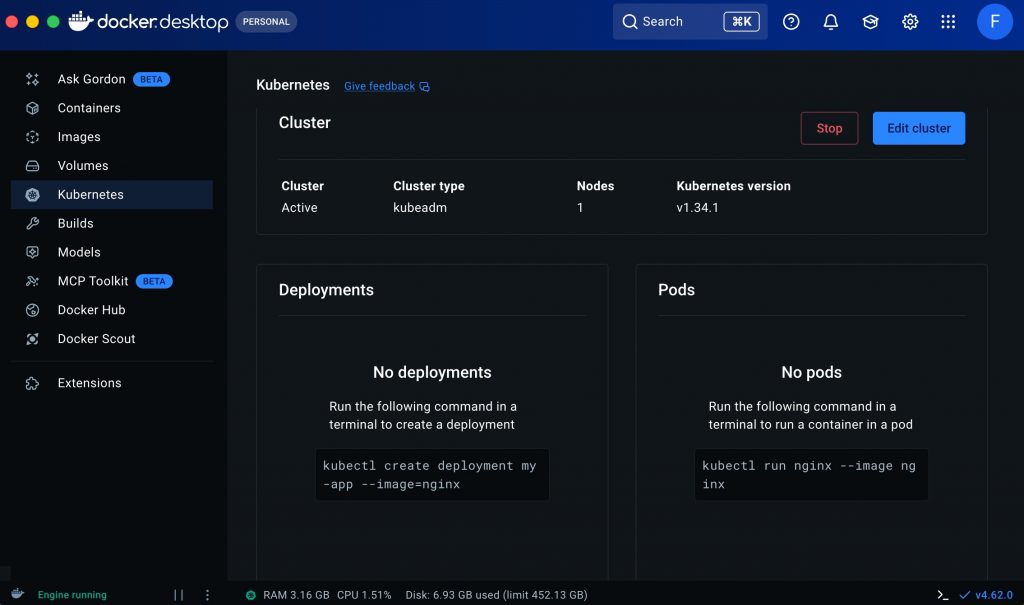
✔️ 도커데스크탑에서 쿠버네티스를 실행하면 아래와 같은 화면을 만날 수 있습니다.
When you run Kubernetes on Docker Desktop, you will see a screen like the one below.
✔️ 터미널을 열고 쿠버네티스가 정상작동하는지 테스트 해봅니다.
Open a terminal and test if Kubernetes is working properly.
— 현재 컨텍스트가 docker-desktop인지 확인
Check if the current context is docker-desktop
% kubectl config current-context
docker-desktop
— 노드 확인 / View Nodes
% kubectl get nodes
NAME             STATUS   ROLES           AGE   VERSION
docker-desktop   Ready    control-plane   70d   v1.32.2
— 파드 확인 / View Pods
% kubectl get pods -A
# kube-system 네임스페이스에 여러 파드가 Running 상태로 보이면 정상
# If multiple pods appear in the kube-system namespace in a Running state, it is normal.
✔️ Nginx 실행해보기 / Try running Nginx
— Deployment생성 / Create a deployment
% kubectl create deployment nginx-test --image=nginx— 파드 생성확인(Deployment 생성 실행하고 몇분 기다린 후)
Confirm pod creation (after running the deployment creation and waiting for a few minutes)
% kubectl get pods— 서비스로 노출하기 / Exposure as a service
% kubectl expose deployment nginx-test --port=80 --type=NodePort— NodePort(서비스)확인 / Check NodePort (Service)
% kubectl get svc nginx-test-> 결과(포트번호가 다를 수 있음.) / Result (port number may be different)
NAME         TYPE       CLUSTER-IP      EXTERNAL-IP   PORT(S)        AGE
nginx-test   NodePort   10.105.28.195   <none>        80:31140/TCP   80s
— 브라우저에서 실행하기 / Run in browser
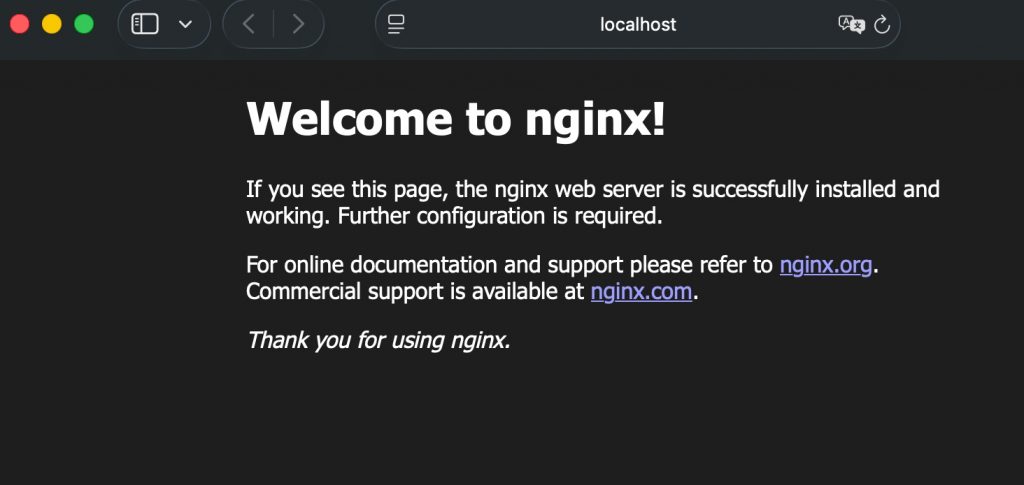
% open http://localhost:31140— 아래처럼 화면이 보이면 정상적으로 실행되는겁니다.
If you see the screen as below, it is running normally.
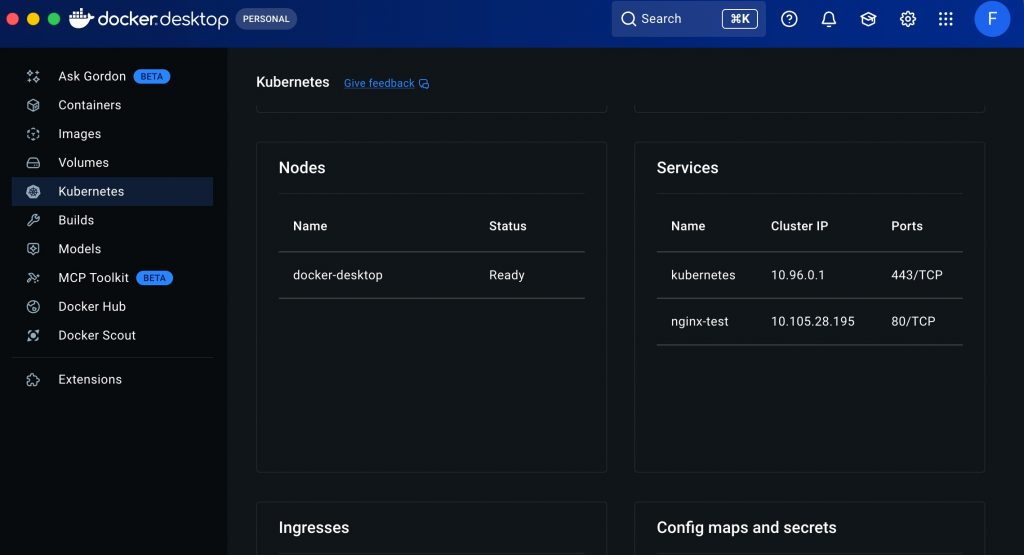
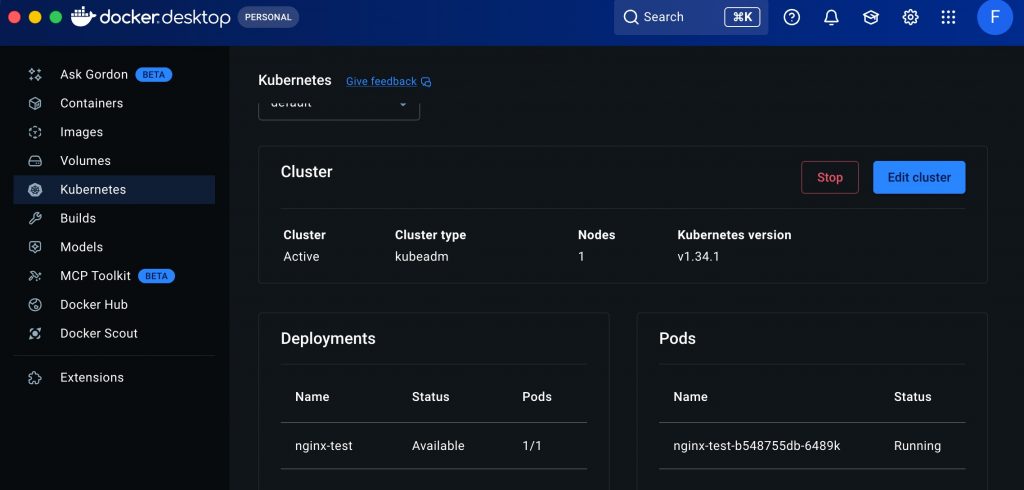
👉🏻도커데스크탑에서 node,service,deployment,pods보기
View nodes, services, deployments, and pods in Docker Desktop