👉 아래는 기존의 윈도우지우고 리눅스(xubuntu)새로 설치하는 방법입니다.
Below is how to erase existing Windows and install a new Linux (xubuntu).
👉 윈도우를 한번 포맷하고 설치해 보신 분이면 어렵지 않게 설치하실 수 있습니다.
If you have formatted and installed Windows before, you can install it without difficulty.
👉🏻리눅스(Xubuntu) 다운로드(iso파일)
Download Linux (Xubuntu) (iso file)
✔️ xubuntu.org에서 ios파일을 다운 받습니다.
Download the ios file from xubuntu.org.
✔️ 저는 Direct Download로 다운받았습니다.
I downloaded it using Direct Download.
✔️경고 문구나 다운로드 정지되어도 계속 다운 받으시면 됩니다.
You can continue downloading even if you see a warning message or the download is stopped
👉🏻Rufus 다운로드
Rufus Download
✔️ 다운 받은 ios파일을 usb에 부팅가능하도록 설치하는 앱입니다.
This is an app that installs the downloaded iOS file into a bootable USB.
✔️ rufus공식 웹사이트에 사용방법이 있습니다.
There are instructions on the official Rufus website.
✔️ 공식 웹사이트에 설명이 한글화 되어 있습니다.
The official website description is in Korean.
✔️ xubuntu 부팅 usb만들기
Creating a Xubuntu bootable USB
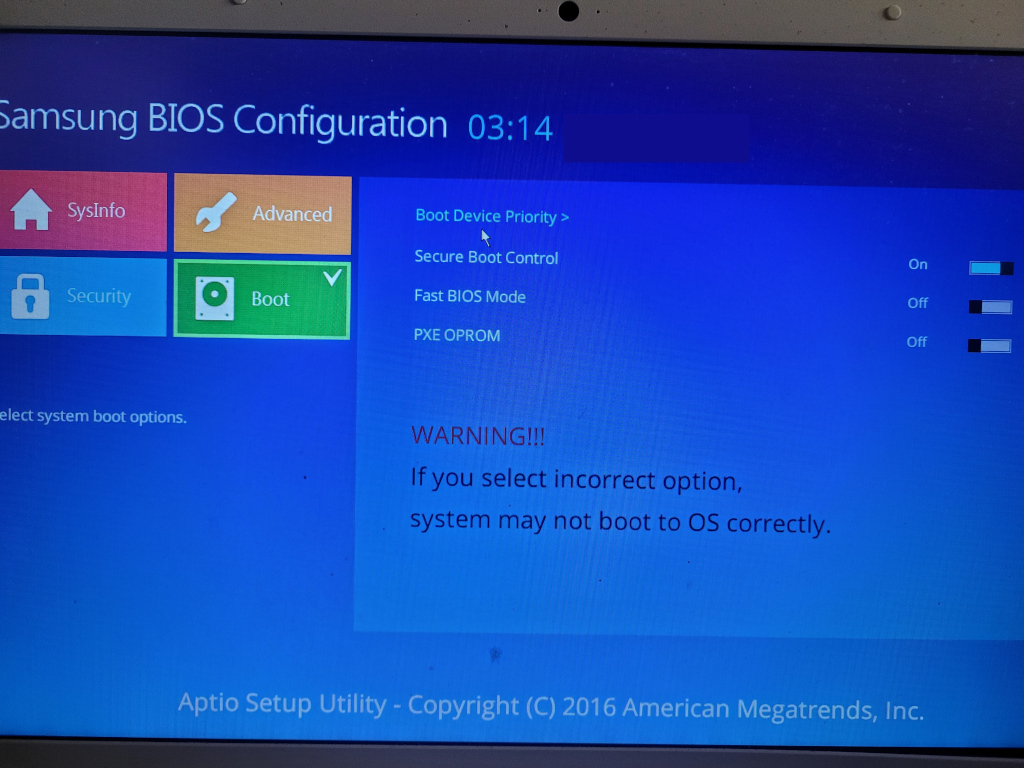
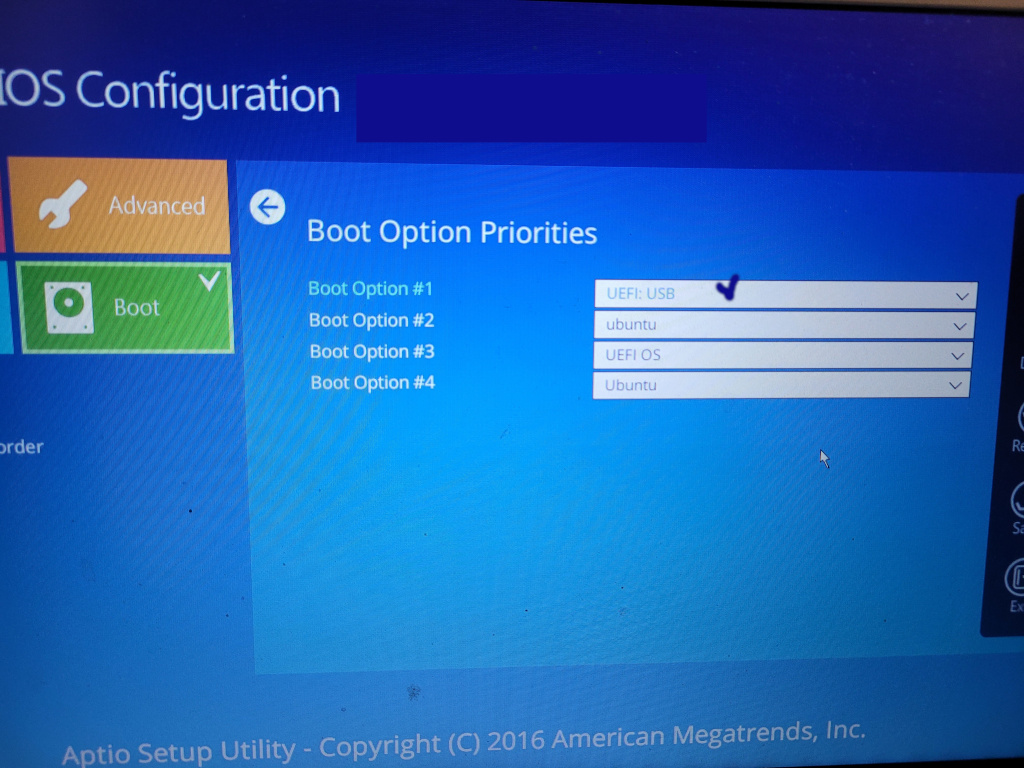
👉BIOS에서 가장 처음 부팅될 장치를 순서를 USB로 설정합니다.
In BIOS, set the first boot device to USB.
✔️PC나 노트북을 재부팅하면서 F2 를 연타합니다.(PC마다 약간 다를 수 있음.)
Reboot your PC or laptop by repeatedly pressing F2 (this may vary slightly from PC to PC).
✔️저의 경우는 삼성노트북입니다.
In my case, it’s a Samsung laptop.
✔️바이오스 설정 / bios settings
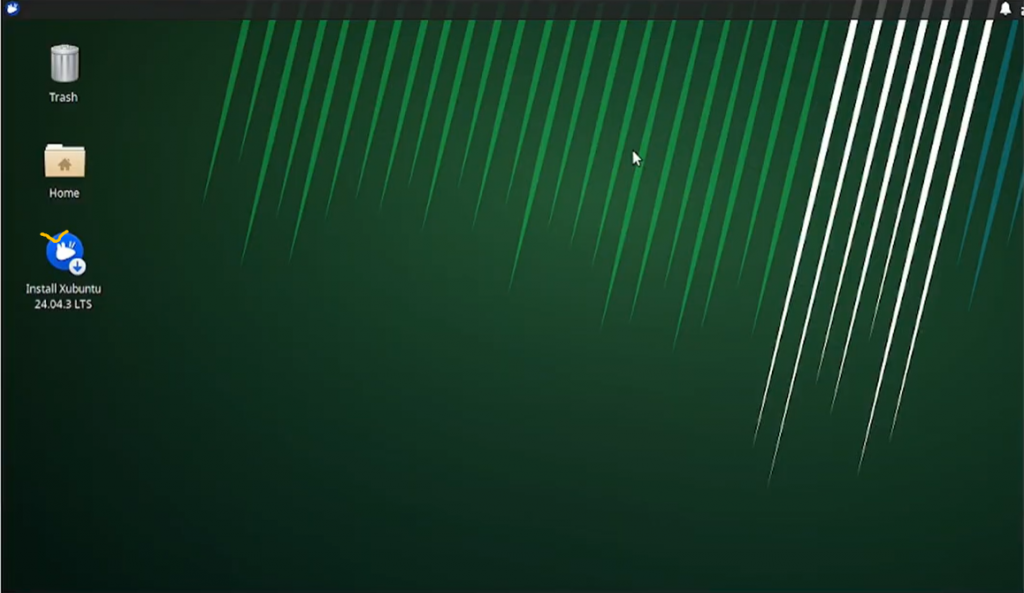
👉 부팅이 완료되면 바탕화면 Install Xubuntu를 클릭해서 설치합니다.
Once booting is complete, click Install Xubuntu on the desktop to install.
✔️ 기본설정에 따라 설치 진행 하시면 됩니다.
You can proceed with the installation according to the default settings.
👉️ 지금과 같은 로그인 화면이 나오면 설치가 성공한 것입니다.
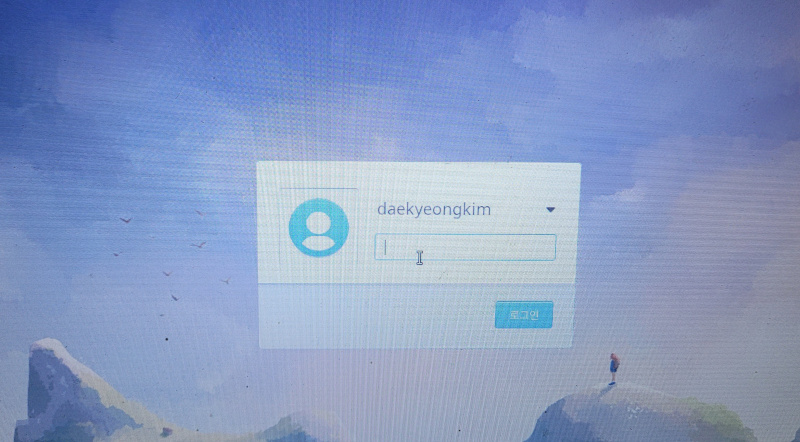
If you see a login screen like this, the installation was successful.