👉🏻 Wireguard는 VPN(Virtual Private Network)서버이름입니다.
Wireguard is the name of a VPN (Virtual Private Network) server.
👉🏻전용 물리적인 전용선을 까는 것이 아니라, 누구나 사용하는 공용 인터넷망 위에 소프트웨어적으로 만든 가상의 통로라는 뜻입니다.
It means that rather than laying a dedicated physical dedicated line, it is a virtual passage created through software on top of the public Internet network that anyone can use.
👉🏻 VPN서버를 구축하고 외부에서 VPN네트워크로 접속하면 VPN서버와 동일한 네트워크에 접속한것 같은 상태가 됩니다.
When you set up a VPN server and connect to the VPN network from outside, it will feel like you are connected to the same network as the VPN server.
👉🏻 ip공유기 환경에서는 ip공유기에 연결된 pc와 동일한 네트워크에 접속 상태가 됩니다.
In an IP sharing environment, you will be connected to the same network as the PC connected to the IP sharing device.
👉🏻 VPN네트워크는 암호화 되기 때문에 이 네트워크로 전송되는 데이터를 확인 할 수 없습니다.
Because the VPN network is encrypted, data transmitted over this network cannot be viewed.
👉🏻 Wiregurad 설치 / Install Wireguard
sudo apt update
sudo apt install wireguard
👉🏻 필수 패키지 및 확인 커널 모듈 로드
Load required packages and verify kernel modules
sudo apt update
sudo apt install wireguard-tools
sudo modprobe wireguard  # 모듈 로드 확인 / Verify module loading
lsmod | grep wireguard # 모듈 목록 확인 / Module list👉🏻키 (서버용) / Key (for server)
✔️개인 키와 공개 키 만들기 / Creating private and public keys
wg genkey | sudo tee /etc/wireguard/privatekey | wg pubkey | sudo tee /etc/wireguard/publickeyserver_private.key : 서버 개인 키 (절대 공유 금지!) / Server private key (never share!)
server_public.key : 서버 공개 키(클라이언트에서 사용됨.) / Server public public(Used by clients.)
✔️키보기 / VIew key
sudo cat /etc/wireguard/privatekey # 개인키 / private key
sudo cat /etc/wireguard/publickey # 공개키 / public key
👉🏻WireGuard 인터페이스 설정 파일 만들기
Creating a WireGuard interface configuration file
sudo nano /etc/wireguard/wg0.conf✔️ wg0.conf에 아래의 내용 추가하기 ( [Interface]…)
Add the following to wg0.conf ( [Interface]…)
⭐️ 내 pc 랜카드 이름 확인 하기 저의 경우는 enp2s0입니다.
Check the name of my PC’s LAN card. In my case, it is enp2s0.
⭐️ PostUp과 PostDown에 랜카드 이름이 정확하지 않으면 오류 발생합니다.
An error will occur if the LAN card name is incorrect in PostUp and PostDown.
ip route list default | awk '{print $5}'[Interface]
PrivateKey = <서버의_privatekey_내용>
Address = 10.0.0.1/24
ListenPort = 51820
# 인터넷 공유 설정 (랜카드 이름에 주의하세요!)
PostUp = iptables -A FORWARD -i wg0 -j ACCEPT; iptables -t nat -A POSTROUTING -o enp2s0 -j MASQUERADE
PostDown = iptables -D FORWARD -i wg0 -j ACCEPT; iptables -t nat -D POSTROUTING -o enp2s0 -j MASQUERADE✔️서버시작 / Server Start
sudo wg-quick up wg0✔️ 부팅시 자동 시작 적용 / Apply auto-start at boot
sudo systemctl enable wg-quick@wg0👉🏻IP 포워딩 설정 / IP forwarding settings
✔️ 네트워크 내의 다른 서버접속을 위해서 필요합니다.
Required for connecting to other servers within the network.
✔️ 포워딩 설정 명령어를 지금 바로 적용합니다.
Apply the forwarding configuration command now.
sudo sysctl -w net.ipv4.ip_forward=1✔️ 포워딩 설정 명령어가 재부팅되면 초기화 되기때문에 영구 적용합니다.
The forwarding configuration command is applied permanently because it is initialized when rebooted.
echo "net.ipv4.ip_forward=1" | sudo tee -a /etc/sysctl.conf
sudo sysctl -p
⭐️ 현재 포워딩 설정이 적용됐는지 확인 하기(1이 표시되면 포워딩 설정상태)
Check if the current forwarding settings are applied (if 1 is displayed, the forwarding settings status)
cat /proc/sys/net/ipv4/ip_forward| ⭐️ 도커를 사용하는 경우 /etc/sysctl.conf 여기에 아무 기록이 없어도 재부팅시 ip_forward가 1로 출력될 수 있습니다. If you are using Docker, ip_forward may be output as 1 on reboot even if there is no record in /etc/sysctl.conf. ⭐️ /etc/sysctl.conf 에 기록된 내용은 재부팅시에도 적용되며 sudo sysctl -p 명령어로 커널에 적용합니다. 만약을 위해서 /etc/sysctl.conf 에 기록을 해둡니다. The contents of /etc/sysctl.conf are applied even upon reboot, and the sudo sysctl -p command applies them to the kernel. Just in case, record them in /etc/sysctl.conf. |
👉🏻 방화벽 설정 (UFW 사용시)
Firewall settings (when using UFW)
✔️ 51820/udp 방화벽 오픈
51820/udp firewall open
sudo ufw allow 51820/udp✔️ 방화벽 설정 상태 확인
Check firewall settings status
sudo ufw status👉🏻 WireGuard 시작 및 자동 부팅 설정
Starting WireGuard and Setting Up Autoboot
sudo wg-quick up wg0    # 시작 (wg0는 conf 파일 이름)
sudo systemctl enable wg-quick@wg0  # 부팅 시 자동 시작
sudo wg show👉🏻 클라이언트 설정하기(안드로이드)
Setting up the client (Android)
✔️ 도구 설치하기 / Install tools
sudo apt update
sudo apt install qrencode
✔️클라이언트 키 생성 / Generate client key
설치가 끝나셨다면, 아래 명령어를 복사해서 실행해 보세요. (접속할 기기 1대를 위한 키 쌍입니다.)
Once the installation is complete, copy and run the command below. (This is a key pair for one device you want to connect to.)
# 클라이언트용 키 생성 및 파일 저장
# Generate a key for the client and save the file
wg genkey | tee client_privatekey | wg pubkey > client_publickey

# 설정 확인
# Check settings
echo "Client Private Key: $(cat client_privatekey)"
echo "Client Public Key: $(cat client_publickey)"
✔️설정 파일 수정 / Edit configuration file
— public key 추가 / Add public key
sudo nano /etc/wireguard/wg0.conf— 클라이언트설정 / Client settings
[Peer]
# cat client_publickey로 확인한 문자열을 넣으세요
# Enter the string verified with cat client_publickey
PublicKey = d9UB/d9UB/d9UB/d9UB/d9UB/d9UB/d9UB/ # 진짜 키 아님 / Not a real key

# 이 클라이언트에게 부여할 가상 IP (서버가 .1이므로 .2를 줍니다)
# Virtual IP to assign to this client (since the server is .1, we give it .2)
AllowedIPs = 10.0.0.2/32
— 서버 및 클라이언트 전체 설정 / Full server and client settings
[Interface] # 전체 설정 / full settings
PrivateKey = (서버 개인키 / Server private key)
Address = 10.0.0.1/24
ListenPort = 51820

# PostUp과 PostDown은 각각 한 줄로 길게 이어져야 합니다
# PostUp and PostDown must each be on one long line

PostUp = iptables -A FORWARD -i wg0 -j ACCEPT; iptables -t nat -A POSTROUTING -o enp2s0 -j MASQUERADE
PostDown = iptables -D FORWARD -i wg0 -j ACCEPT; iptables -t nat -D POSTROUTING -o enp2s0 -j MASQUERADE

[Peer]
PublicKey = (클라이언트 공개키 / client public key)
AllowedIPs = 10.0.0.2/32
✔️ wireguard 서버 재시작
wireguard server restart
# 꼬인인터페이스 있으면 삭제
# If there is a tangled interface, delete it.
sudo ip link delete wg0 2>/dev/null

# 다시 시작
# restart
sudo systemctl restart wg-quick@wg0

# 상태 확인
# Check status
sudo wg show
✔️ 다음과 같은 형태로 출력이면 정상
If the output is in the following format, it is normal
~$ sudo wg show
interface: wg0
  public key: uCeRw5uCeRw5uCeRw5uCeRw5uCeRw5uCeRw5
  private key: (hidden)
  listening port: 51820

peer: dPKVpzdPKVpzdPKVpzdPKVpzdPKVpzdPKVpzdPKVpzd
  allowed ips: 10.0.0.2/32
✔️ 클라이언트 파일 작성
Create client file
–어디에 만들어도 상관 없지만 /home/yourhome/wgClientConfig/ 이 위치에 만듭니다.
It doesn’t matter where you create it, but create it in /home/yourhome/wgClientConfig/
nano client.conf— 필요한 정보 확인하기
Find the information you need
# 클라이언트 개인키 확인
# Verify client private key
cat ~/client_privatekey

# 서버 공개키 확인
# Verify server public key
sudo cat /etc/wireguard/publickey

# 서버의 공인 IP 확인 (도메인으로 입력해도 됨.)
# Check the server's public IP (you can also enter it as a domain)
curl ifconfig.me
— client.conf
[Interface]
PrivateKey = (클라이언트 개인키 / Client private key)
Address = 10.0.0.2/24
DNS = 1.1.1.1

[Peer]
PublicKey = (서버 공개키 / Server publick key)
Endpoint = yourhost.iptime.org:51820
AllowedIPs = 0.0.0.0/0
👉🏻 서버와 클라이언트 연결하기
Connecting the server and client
✔️QR 코드 띄우기 / Display QR code
qrencode -t ansiutf8 < client.conf✔️모바일 폰에서 wireguare앱 받아서 + 탭하고 QR코드 스캔하고 이름을 입력 합니다.
Download the WireGuar app on your mobile phone, tap +, scan the QR code, and enter name.
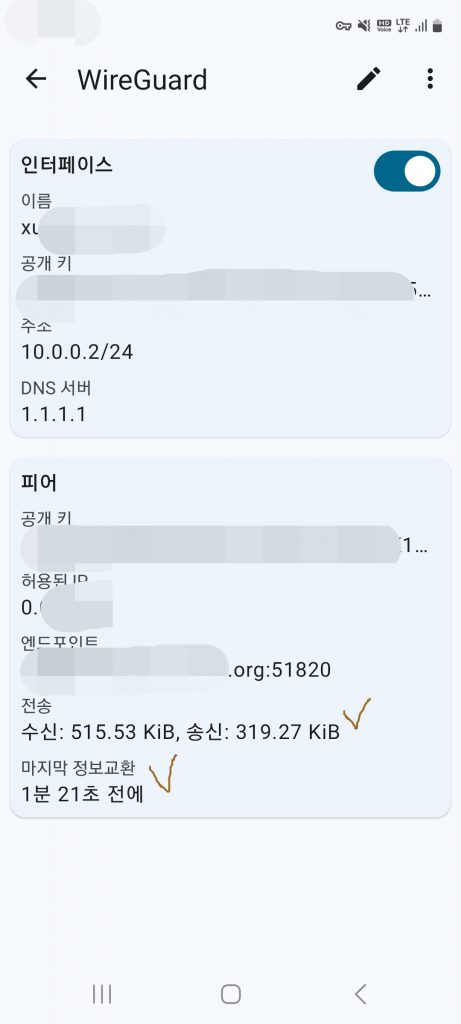
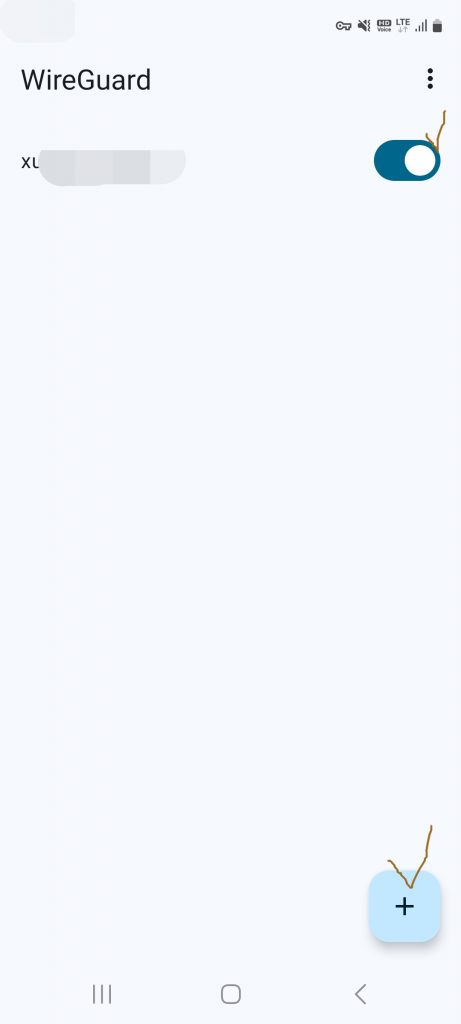
✔️모바일 앱에서 스위치를 켜고나서 서버에서 다음을 입력합니다.
After turning on the switch in the mobile app, enter the following on the server:
$ sudo wg show✔️아래와 같이 시간이 표시되면 성공한 것입니다
If the time is displayed as below, it is successful.
interface: wg0
  public key: d9UBd9UBd9UBd9UBd9UBd9UBd9UB
  private key: (hidden)
  listening port: 51820

peer: d9UBd9UBd9UBd9UBd9UBd9UBd9UBd9UB
  endpoint: 192.168.0.1:46821
  allowed ips: 10.0.0.2/32
  latest handshake: 51 seconds ago
  transfer: 18.21 KiB received, 35.34 KiB sent
✔️ 모바일 폰(안드로이드)에서 확인하기
Check on your mobile phone (Android)
먼저 모바일 폰에서 wifi접속을 해제하고 모바일데이터만 켭니다.
First, turn off Wi-Fi on your mobile phone and turn on only mobile data.
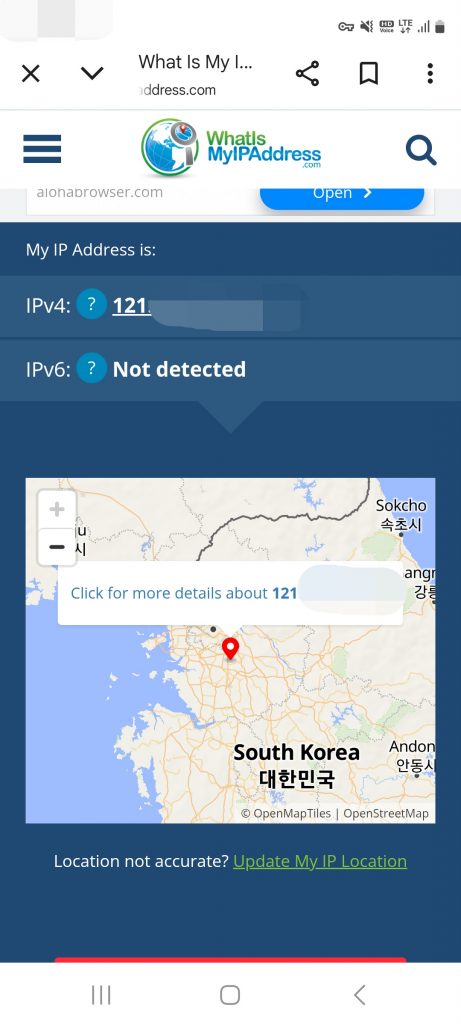
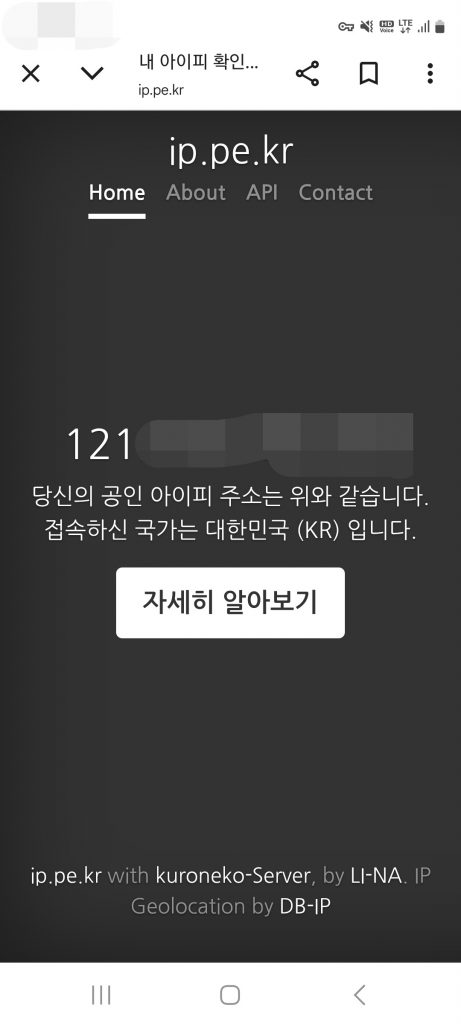
포털 사이트 검색창에서 모바일폰 브라우저에서 “내 아이피”또는 “what is my ip address”검색합니다.
Search for “my IP”(korean) or “what is my IP address” in the portal site search bar or on your mobile phone browser.
확인된 아이피 주소가 공유기에 연결된 아이피 주소와 일치하는지 확인하면 wireguard가 정상 작동하는것입니다.
If you verify that the verified IP address matches the IP address connected to the router, then Wireguard is working properly.
리눅스에서 공인 아이피 주소는 다음과 같이 확인 할 수 있습니다.
In Linux, you can check your public IP address as follows:
curl icanhazip.com


