👉🏻 Vite React는 웹사이트를 만드는 개발도구입니다.
Vite React is a development tool for creating websites.
👉🏻 Vite는 React 프로젝트에서 매우 인기 있는 빌드 도구이자 개발 서버라고 합니다.
Vite is said to be a very popular build tool and development server for React projects.
👉🏻 Vite는 프랑스어로 “빠르다”라는 뜻이랍니다. (발음은 영어로 “veet”이라고 읽음)
Vite means “fast” in French. (It’s pronounced “veet” in English.)
👉🏻 개발자들이 “빨리빨리 개발하고 싶다”는 마음을 담아서 지은 이름이라고 합니다.
It is said that the name was created by developers with the intention of “wanting to develop quickly.”
👉🏻 요즘 거의 모든 새로운 React/Vue/Svelte 프로젝트에서 Create React App 대신 Vite + React 조합을 기본으로 선택하는 추세입니다.
Nowadays, almost every new React/Vue/Svelte project is choosing the Vite + React combination as the default instead of Create React App.
👉🏻 React는 웹사이트나 앱에서 화면(버튼, 목록, 입력창, 동영상 플레이어 등)을 예쁘고 빠르게, 그리고 관리하기 쉽게 만드는 도구 입니다.
React is a tool for creating beautiful, fast, and easy-to-maintain screens (buttons, lists, input fields, video players, etc.) on websites and apps.
👉🏻 웹사이트 개발이 주력 업무가 아니더라도 서버를 개발하다가 보면 관리자 패널 정도는 웹을 사용해야 할 일이 있습니다.
Even if website development isn’t your main job, you’ll probably need to use the web for things like the admin panel when developing servers.
👉🏻 데이터베이스는 postgresql사용 합니다.
The database uses PostgreSQL.
👉🏻 아래는 MacOS에서 VIte React 설치하는 방법 입니다.
Below is how to install VIte React on macOS.
# 1. 최신 Vite + React + TypeScript 프로젝트 생성
# Create a modern Vite + React + TypeScript project

npm create vite@latest ReactExample -- --template react-ts

# 만약 yarn 쓰신다면:
# If you use yarn:

# yarn create vite ReactExample --template react-ts

# 2. 프로젝트 폴더로 이동
# Go to the project folder

cd ReactExample

# 3. 의존성 설치
# Installing dependencies

npm install

# 4. 개발 서버 실행 (자동으로 브라우저 열림)
# Run the development server (browser opens automatically)

npm run dev
✔️ 터미널에서 npm create vite@latest ReactExample — –template react-ts 실행할 경우 아래의 내용을 참조 하세요
If you run npm create vite@latest ReactExample — –template react-ts in the terminal, see below.
✔️ “Use rolldown-vite (Experimental)? ” 이 부분을 yes하면 안정화 버전이 아닌 실험적인 최신버전이 설치됩니다.
“Use rolldown-vite (Experimental)?” If you answer yes to this part, the experimental latest version will be installed, not the stable version.
% npm create vite@latest ReactExample -- --template react-ts

> npx
> "create-vite" ReactExample --template react-ts

│
◇  Package name:
│  reactexample
│
◇  Use rolldown-vite (Experimental)?:
│  No
│
◆  Install with npm and start now?
│  ● Yes / ○ No
✔️ 엔터로 계속 진행하면 아래 처럼 메세지가 터미널에 출력됩니다.
If you continue by pressing Enter, a message like the one below will be printed in the terminal.
✔️그러면 여러분의 pc에서 브라우저를 열고 http://localhost:5173 을 실행합니다.
Then open a browser on your PC and go to http://localhost:5173.
  VITE v7.3.1  ready in 257 ms

  ➜  Local:   http://localhost:5173/
  ➜  Network: use --host to expose
  ➜  press h + enter to show help
✔️ 모든 과정이 정상적이면 브라우저에서다음과 같은 화면을 보실 수 있습니다.
If everything went well, you will see the following screen in your browser:
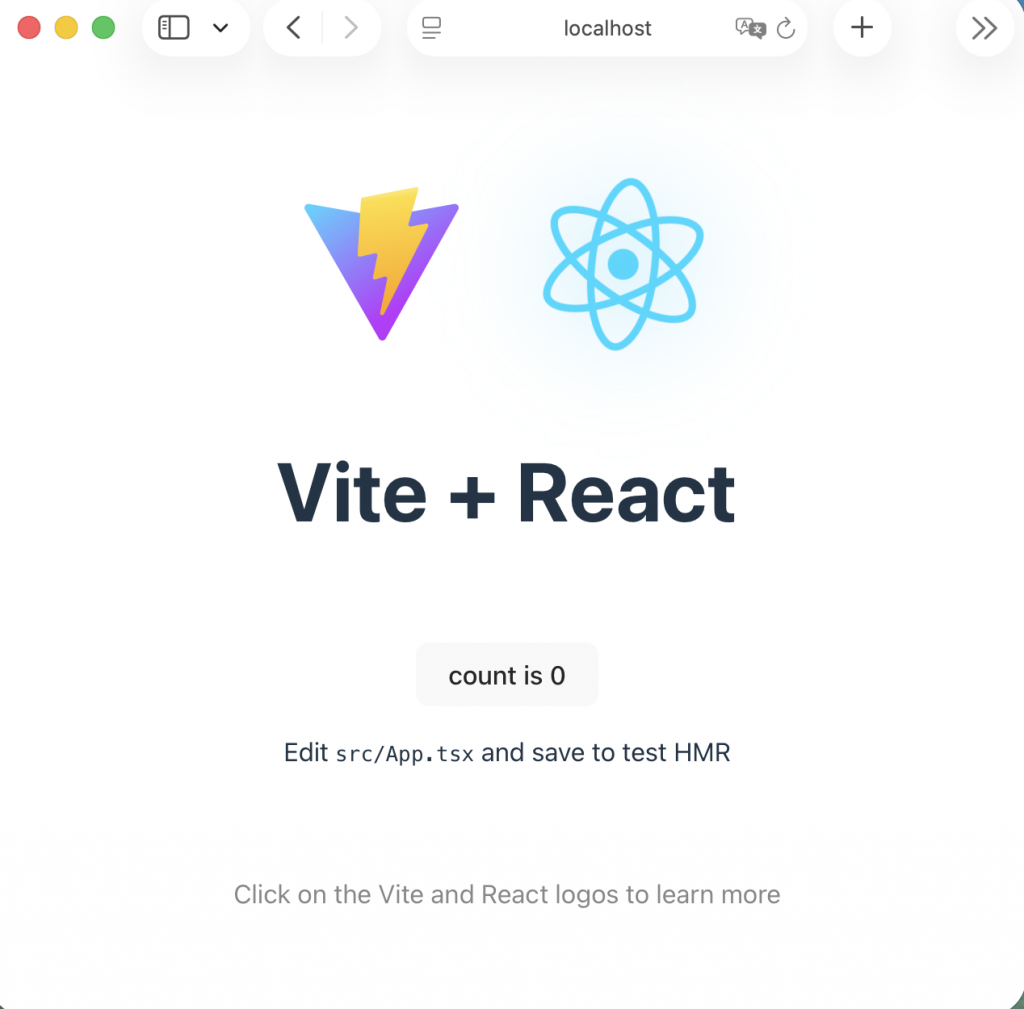
✔️ 터미널에서 개발 서버 중지 할때는 ctrl + c하면 됩니다.
To stop the development server in the terminal, just press ctrl + c.
👉🏻postgresql 설치
install postgresql
✔️ 환경변수설정 및 실행
Setting environment variables and running
— 환경변수 설정이 되어있지 않으면 psql postgres 이 명령어를 못찾습니다.
If the environment variable is not set, the psql postgres command will not be found.
— 해당 디렉토리로 이동해서 명령어를 실행해줘야합니다.
You need to go to that directory and run the command.
— 환경변수가 잘 등록되면 psql postgres처럼 간단히 postgresql을 실행 할 수 있습니다.
Once the environment variables are properly registered, you can run postgresql simply like psql postgres.
# Homebrew postgresql@17의 bin 경로 추가 (Apple Silicon Mac 기준)
# Add the bin path for Homebrew postgresql@17 (based on Apple Silicon Mac)

echo 'export PATH="/opt/homebrew/opt/postgresql@17/bin:$PATH"' >> ~/.zshrc

# Intel Mac이면 /usr/local/opt/... 일 수 있음 → 아래로 대체
# If you have an Intel Mac, it may be /usr/local/opt/... → Replace with below

# echo 'export PATH="/usr/local/opt/postgresql@17/bin:$PATH"' >> ~/.zshrc

# 변경 적용 (터미널 재시작 없이 바로)
# Apply changes (immediately without restarting the terminal)
source ~/.zshrc

# 다시 확인
# check again
psql --version

# 실행 ,Mac에서는이렇게 실행하면 됨 수퍼유저가 postgres가 아님.
# Run , on Mac, run like this. The superuser is not postgres.
psql postgres
✔️ psql postgres 실행시 다음 처름 프롬프트가 바뀌면 정상적으로 설치된겁니다.
If the prompt changes to the following when running psql postgres, it has been installed successfully.
postgres=# 


