👉🏻 리눅스 데스크탑에 대해서 설명을 합니다.
I will explain Linux desktops.
👉🏻 리눅스 배포판은 여러가지가 있고 데스크탑(윈도우 화면)이 있는 배포판중에서 xubutu로 설명을 하려고 합니다.
There are various Linux distributions available, and among those that feature a desktop environment (like the Windows interface), I will use Xubuntu for this explanation.
👉🏻 주분투(xubuntu)는 xfce 데스크탑을 사용하고 저사양 pc에서도 설치해서 사용하기 좋습니다.
Xubuntu uses the Xfce desktop environment and is well-suited for installation and use on low-end PCs.
👉🏻 윈도우 운영체제와 맥OS를 사용 하시는 분들은 아마 아주 쉽게 금방 적응하리라 생각합니다.
I believe that users of Windows and macOS will likely adapt to it very quickly and easily.
👉🏻 데스크탑은 이외에도 GNOME과 KDE가 유명합니다.
Apart from that, GNOME and KDE are well-known desktop environments.
👉🏻 윈도우,맥OS와는 다르게 여러가지 데스크탑(윈도우 화면)이 존재하기 때문에 본인의 기호에 따라 설치 해서 사용할 수 있습니다.
Unlike Windows or macOS, there are various desktop environments available, so you can install and use the one that suits your preferences.
👉🏻 기본적으로 무료로 다운로드하고 설치 해서 사용할 수 있습니다.
Basically, you can download, install, and use it for free.
👉🏻 기존의 윈도우 지우고 리눅스 설치 하실 분들은 아래의 포스트 참조 하시면 됩니다.
If you wish to remove Windows and install Linux, please refer to the post below.
📁 주분투 데스크탑 첫 화면
Xubuntu desktop initial screen
✔️ 주분투에 처음으로 로그인하면 아래와 같은 화면을 볼 수 있습니다.
When you log in to Xubuntu for the first time, you will see a screen like the one below.
✔️ 로그인은 일반 계정으로 로그인합니다. 루트 계정의 경우는 터미널에서 루트로 로그인 할 수 있습니다.
Log in using a standard account. For the root account, you can log in as root via the terminal.
— 바탕화면은 제가 바꾼 설정입니다.
The desktop background is a setting I changed.
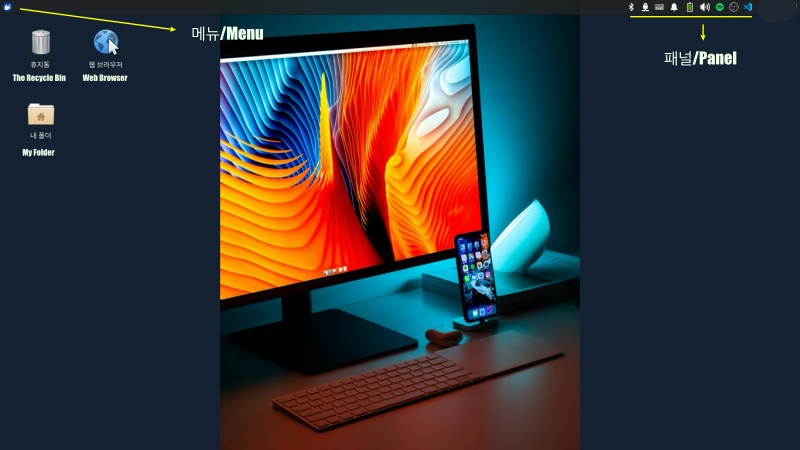
1) 기본적인 화면구성이나 사용방식은 윈도우,맥OS와 동일합니다.
The basic screen layout and usage are the same as those of Windows and macOS.
2)좌측 상단의 메뉴를 마우스로 좌클릭하면 윈도우 메뉴와 동일한 메뉴를 볼 수 있습니다.
Left-clicking the menu at the top left allows you to view a menu identical to the Windows menu.
3)우측 패널은 메뉴에서 우측 패널에 등록해서 빠르게 사용할 수 있습니다.
You can register items to the right panel via the menu for quick access.
4)내 폴더,휴지통,웹브라우저는 윈도우,맥OS랑 같은 기능이라고 보시면 됩니다.
You can think of “My Folders,” “Trash,” and the web browser as having the same functions as those in Windows or macOS.
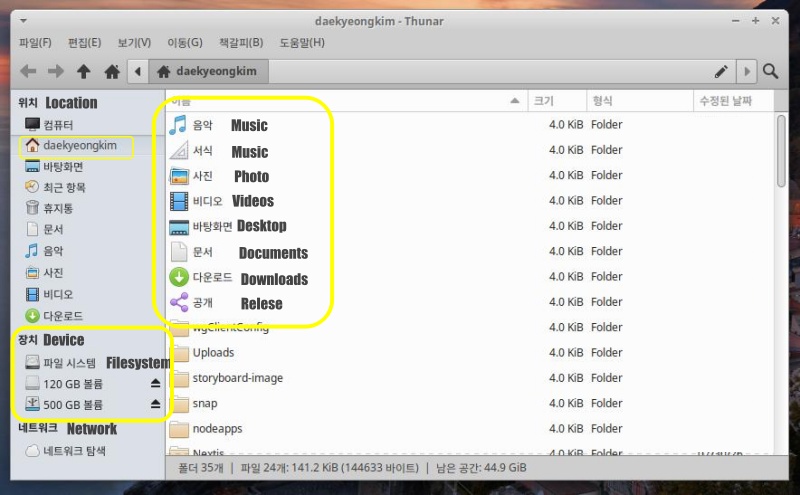
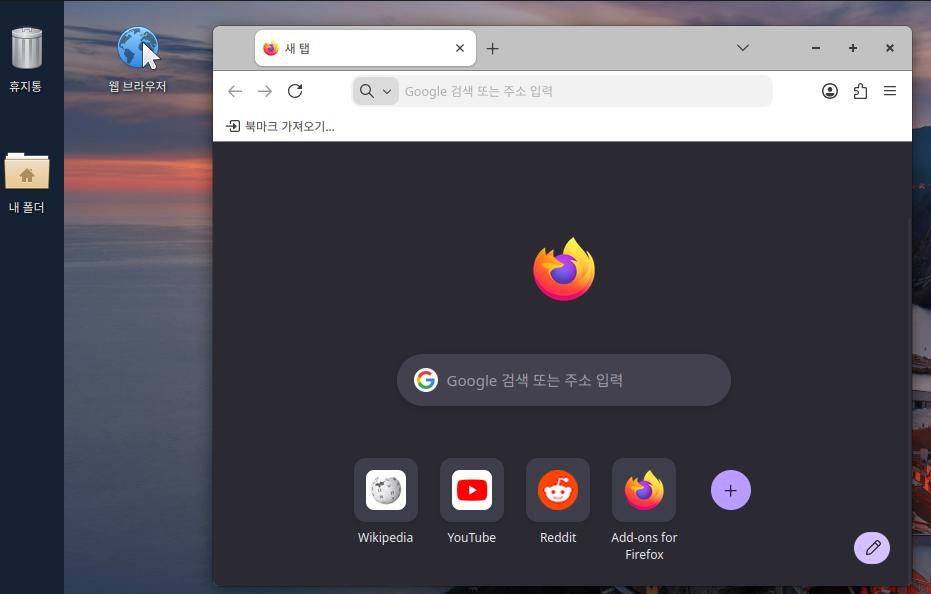
5)화면을 내 폴더,브라우저를 마우스로 좌측으로 더블클릭하면 아래와 같은 화면을 볼 수 있습니다.
If you double-click the “My Folders” or “Browser” area with your left mouse button, you will see a screen like the one below.
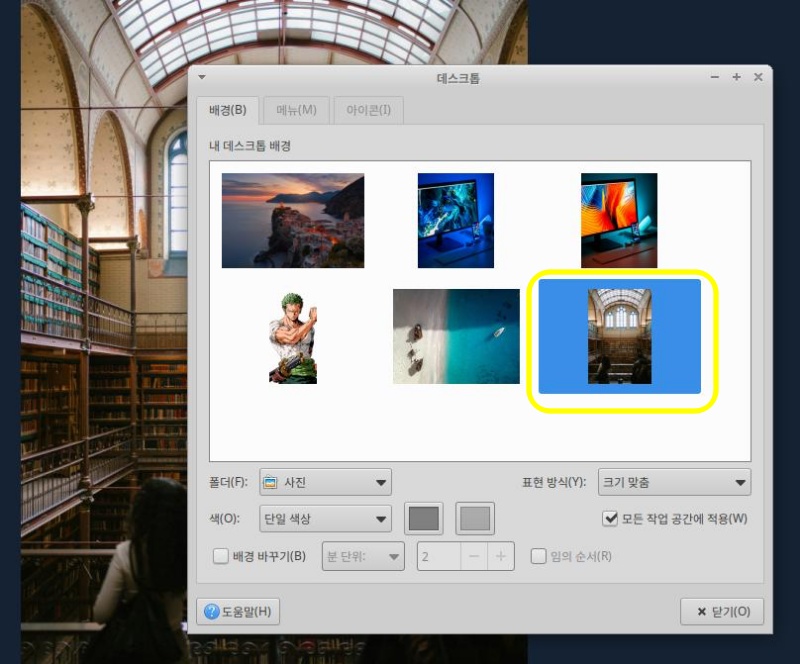
📁 바탕화면 바꾸기 / Change desktop wallpaper
✔️ 리눅스에서 바탕화면 바꾸는 방법은 다른 운영체제랑 같습니다.
The method for changing the desktop background on Linux is the same as on other operating systems.
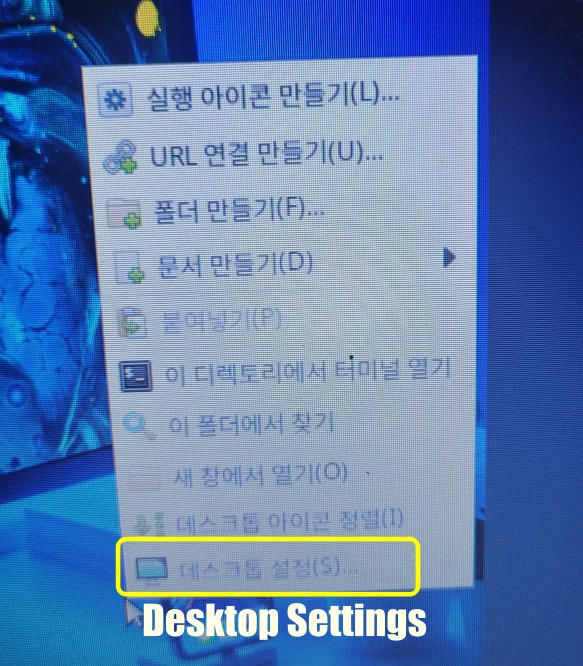
✔️ 바탕화면에서 마우스 우클릭하시고 데스크탑설정 -> 이미지선택 하시면 됩니다.
Right-click on the desktop, then go to Desktop Settings -> Select Image.
📁 마운트 / Mount
✔️ 리눅스와 윈도우 운영체제와의 가장 큰 차이점은 마운트 부분입니다.
The biggest difference between the Linux and Windows operating systems lies in how they handle mounting.
✔️ 이 부분은 맥OS와매우 비슷한데 USB로 연결하는 외장하드디스크나 PC내게 하드디스크를 추가하는 경우 “마운트”라는 과정을 거칩니다.
This aspect is very similar to macOS; when connecting an external hard drive via USB or adding a hard drive to the PC, the system goes through a process called “mounting.”
✔️ 윈도우는 C드라이브는 운영체제 D,E,F이렇게 드라이브가 보이지만 리눅스는 이런 C,D,E 드라이브 이런 개념이 없습니다.
In Windows, drives appear as C (for the operating system), D, E, and F, but Linux does not have this concept of C, D, or E drives.
✔️ 구체적으로는 마운트 명령을 실행해서 내 외장하드디스크나 내장하드디스크를 특정디렉토리에 연결시켜서 사용합니다.
Specifically, you use the mount command to connect your external or internal hard drive to a specific directory.
✔️ 아래 사진의 좌측 하단에 보시면 장치 하단에 120GB,500GB가 외장하드디스크 이고 파일시스템은 리눅스가 설치된 하드디스크입니다.
If you look at the bottom left of the photo below, the 120GB and 500GB drives at the bottom of the device are external hard drives; they are formatted with a Linux file system.
✔️ 파일시스템은 윈도우의 경우 C드라이브라고 보시면 됩니다.
You can think of the file system as the C drive in Windows.
✔️ 예전에는 마운트 명령을 특정 디렉토리에 하드디스크를 마운트(=연결)했어야 했습니다.
In the past, the mount command had to be used to mount (or connect) a hard disk to a specific directory.
✔️xubuntu의 경우 USB 외장하드 연결시 경우 자동으로 마운트 됩니다.
In Xubuntu, an external USB hard drive is automatically mounted when connected.
✔️ 저의 경우 마운트 되는 디렉토리는 다음과 같습니다.
In my case, the directories to be mounted are as follows.
— 이 경로는 배포판마다 조금씩 다를 수 있습니다.
This path may vary slightly depending on the distribution.
# 500기가 외장하드
# 500GB External Hard Drive

/media/daekyeongkim/hdd500

# 120기가 외장하드
# 120GB external hard drive

/media/daekyeongkim/ssd120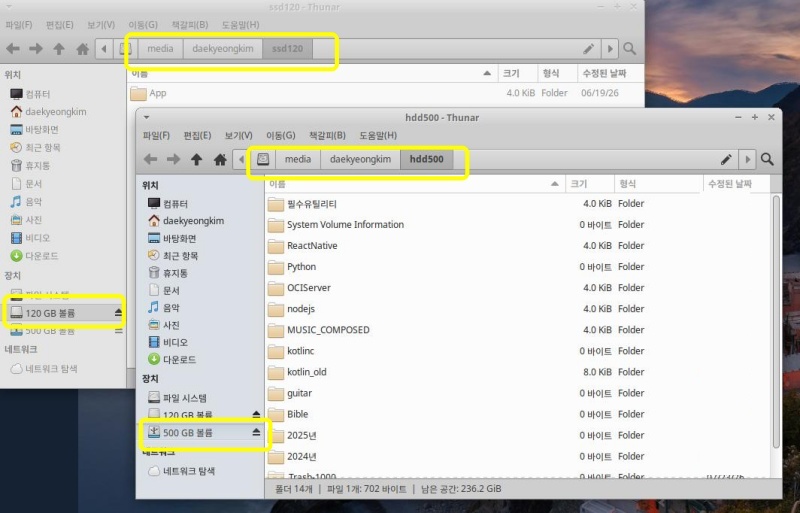
요한복음 8장 32절 / John 8:32
“그리고 너희는 진리를 알게 될 것이며, 진리가 너희를 자유롭게 할 것이다.”
“Then you will know the truth ,and the truth will set you free”


