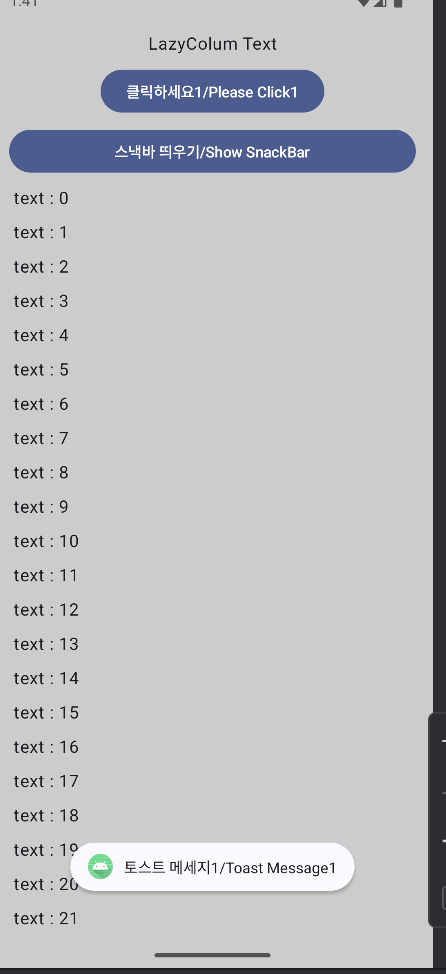
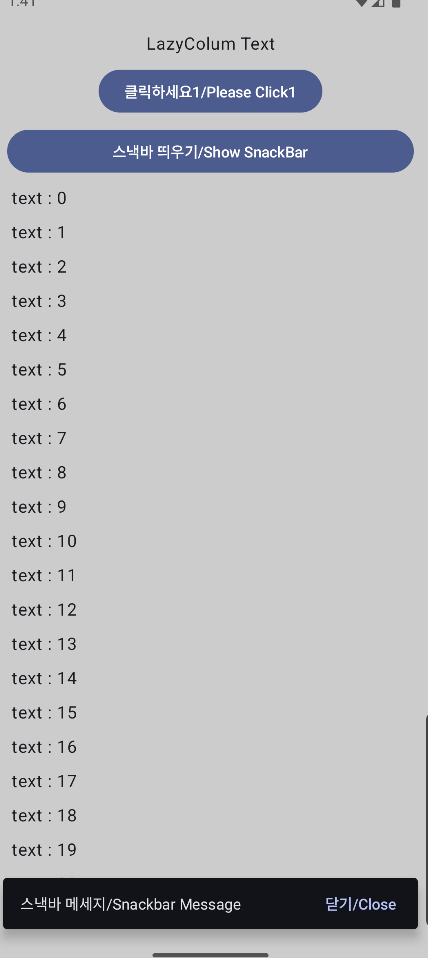
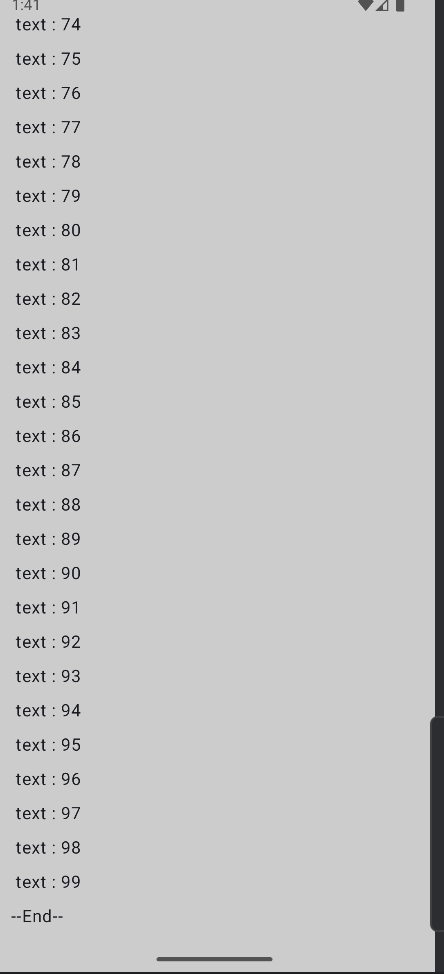
👉🏻 아래는 레이지컬럼안에 버튼 클릭시 토스트 메세지를 실행하는 코드 입니다.
Below is the code that executes a toast message when a button is clicked in the lazy column.
👉🏻 레이지컬럼은 xml방식에서 리사이클러뷰 비슷한 역할입니다.
LazyColumn plays a similar role to RecyclerView in XML style method.
👉🏻 토스트메세지는 xml방식과 compose방식은 사용방법, 디자인,기능이 다릅니다.
Toast messages in XML and Compose have different usage methods, designs, and functions.
👉🏻 콜백함수 : 파라메터로 함수를 사용하는 것을 의미합니다.
Callback function: This means using a function as a parameter.
👉🏻 레이지컬럼에서 버튼을 정렬하려면 box아이템으로 감싸야합니다.(속성이 없음)
To align buttons in a lazy column, you need to wrap them in a box item (the attribute does not exist).
1.코드/Code
package com.freelifemakers.lazycolumnexample

import android.os.Bundle
import android.widget.Toast
import androidx.activity.ComponentActivity
import androidx.activity.compose.setContent
import androidx.activity.enableEdgeToEdge
import androidx.compose.foundation.background
import androidx.compose.foundation.layout.Arrangement
import androidx.compose.foundation.layout.Box
import androidx.compose.foundation.layout.PaddingValues
import androidx.compose.foundation.layout.fillMaxSize
import androidx.compose.foundation.layout.fillMaxWidth
import androidx.compose.foundation.layout.padding
import androidx.compose.foundation.lazy.LazyColumn
import androidx.compose.material3.Button
import androidx.compose.material3.Scaffold
import androidx.compose.material3.SnackbarDuration
import androidx.compose.material3.SnackbarHost
import androidx.compose.material3.SnackbarHostState
import androidx.compose.material3.Text
import androidx.compose.runtime.Composable
import androidx.compose.runtime.remember
import androidx.compose.runtime.rememberCoroutineScope
import androidx.compose.ui.Alignment
import androidx.compose.ui.Modifier
import androidx.compose.ui.graphics.Color
import androidx.compose.ui.platform.LocalContext
import androidx.compose.ui.text.style.TextAlign
import androidx.compose.ui.tooling.preview.Preview
import androidx.compose.ui.unit.dp
import com.freelifemakers.lazycolumnexample.ui.theme.LazyColumnExampleTheme
import kotlinx.coroutines.launch
/*
*
* LazyColumn에서 아이템 전체정렬,개별정렬
* - 전체정렬 : horizontalAlignment = Alignment.CenterHorizontally 사용
* - 개별정렬 : 텍스트는 자체 속성 사용,버튼은 box로 감싸고 가운데 정렬
* 버튼 클릭시 토스트메세지 띄우기(2가지 방식)
*
* */
class MainActivity : ComponentActivity() {
    override fun onCreate(savedInstanceState: Bundle?) {
        super.onCreate(savedInstanceState)
        enableEdgeToEdge()
        setContent {
            LazyColumnExampleTheme {
                // 토스트메세지2: SnackBar 상태와 Scope를 최상위에서 생성
                val snackbarHostState = remember { SnackbarHostState() }
                val scope = rememberCoroutineScope()

                Scaffold(modifier = Modifier.fillMaxSize(),

                    // 토스트메세지2:!!! 최상위 Scaffold에 SnackBarHost를 연결 !!!
                    snackbarHost = {
                        SnackbarHost(hostState = snackbarHostState)
                    }

                    ) { innerPadding ->


                LazyColumn(
                    modifier = Modifier
                        .background(color = Color.LightGray)
                        .fillMaxWidth()
                        .padding(innerPadding),

                    // 아이템 전체를 가운데 정렬할 경우 이 속성을 추가합니다.
                    // Add this property if you want to center all items.
                    //horizontalAlignment = Alignment.CenterHorizontally

                    contentPadding = PaddingValues(16.dp), //
                    verticalArrangement = Arrangement.spacedBy(8.dp)
                ) {
                    item{
                        Text(
                            text = "LazyColum Text",
                            // 아이템 전체 너비를 차지하게 함 / Make the item take up the entire width
                            modifier = Modifier.fillMaxWidth(),
                            // 가운데 정렬 / center aligned
                            textAlign = TextAlign.Center
                        )
                    }
                    item{
                        // LazyColumn내에서 버튼을 가운데 정렬하려면 박스안에 넣어서 정렬
                        // To center the button within the LazyColumn, place it in a box and align it.
                        Box(
                            // Box가 아이템 너비 전체를 차지하게 함.
                            // Make the box take up the entire width of the item.
                            modifier = Modifier.fillMaxWidth(),

                            // 박스내 컨텐츠 중앙정렬.
                            // Center the content within the box.
                            contentAlignment = Alignment.Center
                        ) {
                            // Snackbar XML style
                            SnackbarButton1(msg = "토스트 메세지1/Toast Message1", btnText = "클릭하세요1/Please Click1")
                        }
                    }
                    item{
                        // Snackbar compose방식 / Snackbar compose style
                        // SnackbarButton2를 호출시 SnackBar 로직을 콜백으로 전달
                        // When calling SnackbarButton2, pass the SnackBar logic as a callback.
                        SnackbarButton2(
                            msg = "스낵바 메세지/Snackbar Message",
                            btnText = "스낵바 띄우기/Show SnackBar",
                            acLabel = "닫기/Close",
                            onButtonClick = {
                                // 버튼 클릭 시, MainAcitivity의 Scope와 State를 사용하여 SnackBar 실행
                                scope.launch {
                                    snackbarHostState.showSnackbar(
                                        message = "스낵바 메세지/Snackbar Message",
                                        actionLabel = "닫기/Close",
                                        duration = SnackbarDuration.Short
                                    )
                                }
                            }
                        )
                    }
                    items(100){
                        index ->
                        Text(" text : $index")
                    }
                    item{
                        Text("--End--")
                    }
                }


//                    Greeting(
//                        name = "Android",
//                        modifier = Modifier.padding(innerPadding)
//                    )


                }
            }
        }
    }
}

@Composable
fun SnackbarButton1(modifier: Modifier = Modifier,msg:String,btnText:String){

    // 컨텍스트 가져오기
    val context = LocalContext.current
    //Text("ButtonEvent")

    // Button 컴포저블 추가
    Button(onClick ={
        println("$msg")
        Toast.makeText(context,"$msg",Toast.LENGTH_LONG).show()
    },
        modifier = modifier

    ) {
        // 버튼 내부에 표시할 내용 정의
        Text("$btnText")
    }
}

@Composable
fun SnackbarButton2(
    modifier: Modifier = Modifier,
    msg: String,
    btnText: String,
    acLabel: String,
    onButtonClick: () -> Unit // 클릭 이벤트를 처리할 콜백 함수 추가 / Add Callback function to handle click events
) {

    Button(
        onClick = onButtonClick, // 콜백 함수 실행 / Run callback function
        modifier = Modifier.fillMaxWidth()
    ) {
        Text(btnText)
    }
}
//@Composable
//fun Greeting(name: String, modifier: Modifier = Modifier) {
//    Text(
//        text = "Hello $name!",
//        modifier = modifier
//    )
//}

@Preview(showBackground = true)
@Composable
fun GreetingPreview() {
    LazyColumnExampleTheme {
        //Greeting("Android")
    }
}
2.스크린샷/Screen Shot