👉🏻 Samba Server는 다른 운영체제나 기기에서 네트워크로 서버에 접속할 수 있도록 도와줍니다.(윈도우 파일공유)
Samba Server allows you to connect to a server over a network from other operating systems or devices (Windows file sharing).
👉🏻 설치 / Install
sudo apt install samba👉🏻 설정 파일 수정 / Edit configuration file
✔️ 다음 설정 파일을 수정합니다. / Modify the following settings file
sudo nano /etc/samba/smb.conf✔️ 파일 끝에 다음 내용을 추가합니다. / Add the following to the end of the file
[share]
path = /home/사용자/share
browsable = yes
writable = yes
valid users = 사용자명 / Username
create mask = 0664
directory mask = 0775
✔️ 게스트 설정 / Guest settings
[share]
path = /home/사용자/share
browsable = yes
writable = yes
guest ok = yes
read only = no
✔️ samba 서버 비밀번호 추가 / Add samba server password
⭐️ sudo smbpasswd -a 사용자명 명령으로 Samba 전용 비밀번호를 설정하지 않으면, 다른 운영체제(맥, 윈도우, 안드로이드 등)에서 비밀번호 인증이 필요한 공유 폴더에 접속할 수 없습니다.
If you do not set a Samba-specific password using the sudo smbpasswd -a username command, you will not be able to access shared folders that require password authentication from other operating systems (Mac, Windows, Android, etc.).
sudo smbpasswd -a 사용자명/Username # Samba 비밀번호 설정 / Setting the Samba password✔️ samba 서버 재시작 / Restart the Samba server
sudo systemctl restart smbd또는 / or
sudy service samba restart👉🏻 UFW 방화벽 오픈 / UFW firewall open
sudo ufw allow samba
sudo ufw reload
👉🏻 맥에서 접속 / Connect from Mac
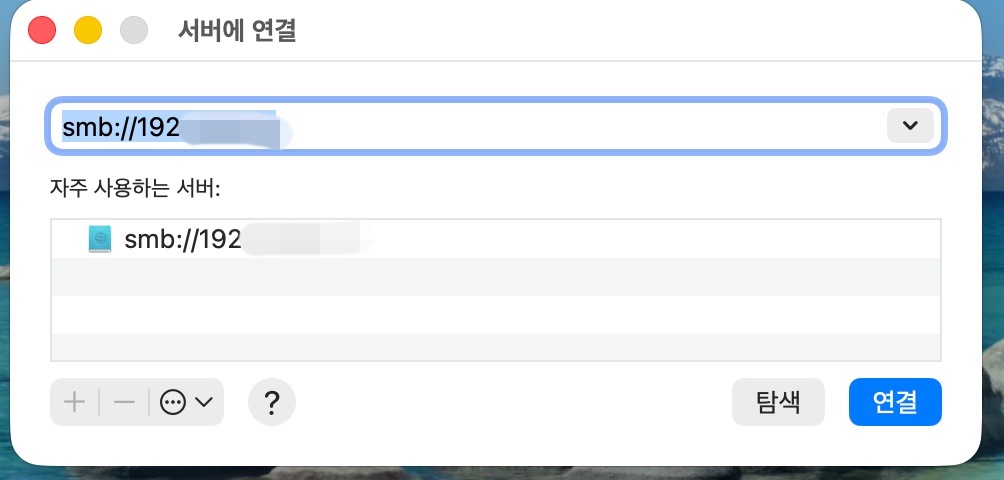
✔️ 상단 메뉴에서 서버연결을 선택합니다. (단축키: Command + K)
Select Server Connection from the top menu (shortcut: Command + K)
✔️ 서버 주소 입력창이 뜨면 다음 처럼 주소를 입력합니다.
When the server address input window appears, enter the address as follows.
— smb://Xubuntu-PC의-IP-주소 예: smb://192.168.1.100
✔️ 연결 버튼을 누르면 인증창이 나타납이다.
When you click the connect button, an authentication window will appear.
✔️ 리눅스 사용자이름과 sudo smbpasswd -a로 설정한 samba전용 패스워드를 입력합니다.
Enter your Linux username and the Samba-specific password you set with sudo smbpasswd -a.
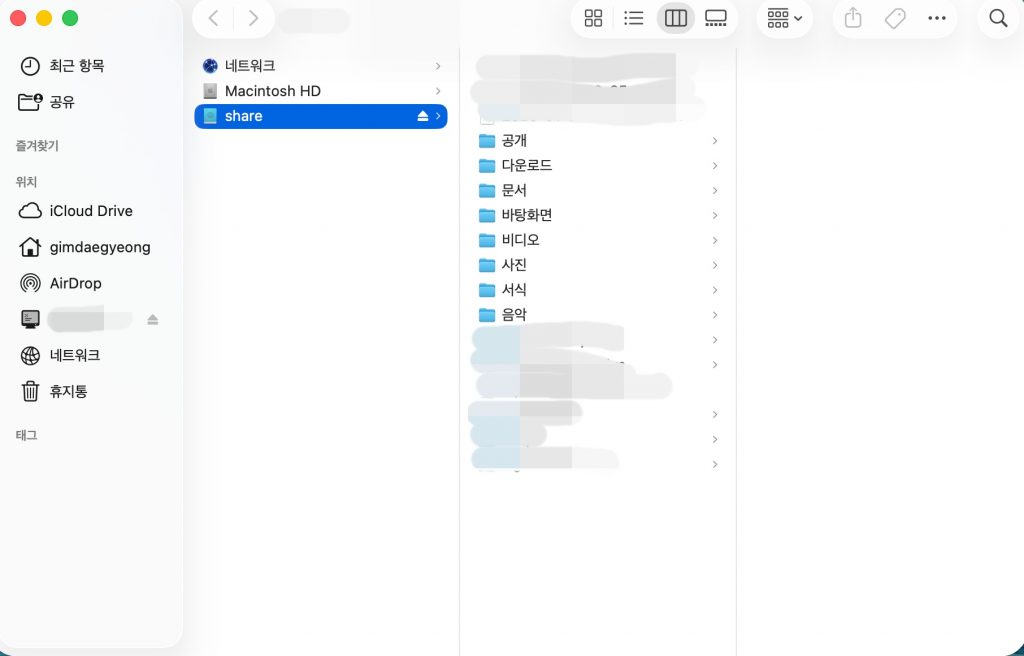
✔️ 정상적으로 연결되면 다음과 같은 화면을 볼 수 있습니다.
If connected successfully, you will see the following screen.