👉🏻 http_lib 서버에 openssl를 사용해서 테스트용 인증서를 받아서 https를 사용하는 방법입니다.
This is a method to use HTTPS by obtaining a test certificate using openssl on the http_lib server.
👉🏻 아래는 MacOS와 Linux에서 사용하는 방법입니다.
Below is how to use it on MacOS and Linux.
👉🏻 Open SSL
✔️ Let’s Encrypt같은 공인인증서가 아닌 스스로 만드는 인증서입니다.
It is a certificate that you create yourself, not an accredited certificate like Let’s Encrypt.
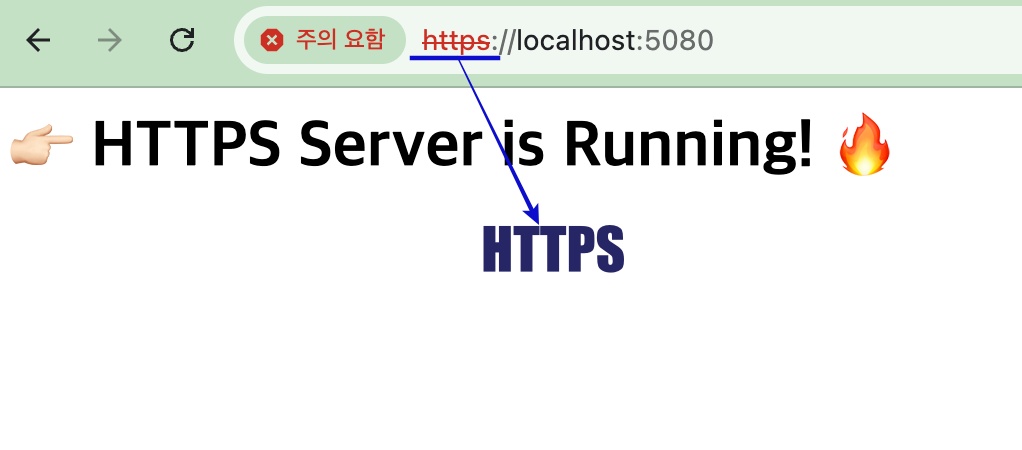
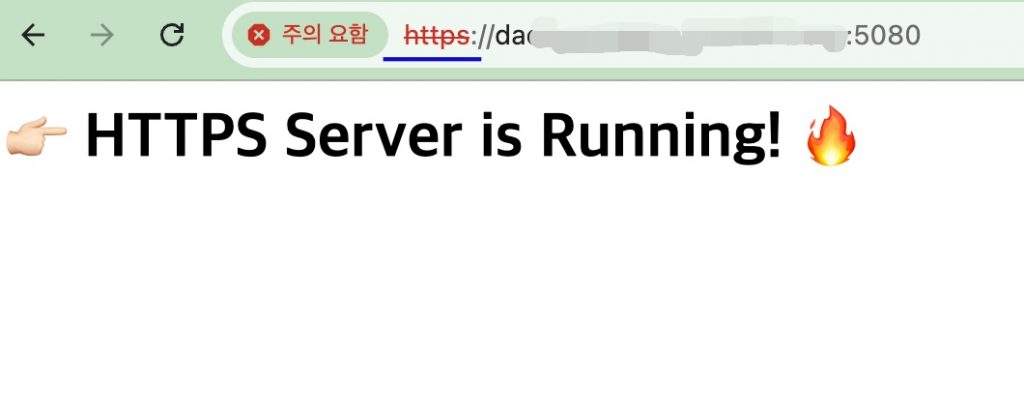
✔️ 공인인증이 아니기 때문에 브라우저 접속시 https://에 빨간줄이 뜹니다.
Since it is not an accredited certificate, a red line appears under https:// when accessing via a browser.
✔️ https테스트 용으로 사용가능하며 실제 서비스에서는 Let’s Encrypt같은 공인인증서가 필요합니다.
It can be used for HTTPS testing, but an accredited certificate like Let’s Encrypt is required for actual services.
👉🏻openssl 설치 / install openssl
✔️MacOS
— Open SSL설치 / install openssl
brew install openssl— 테스트용 인증서와 키파일 생성(cert.pem , key.pem)
Generate test certificate and key file (cert.pem, key.pem)
openssl req -x509 -newkey rsa:4096 -keyout key.pem -out cert.pem -days 365 -nodes✔️ Linux
— Open SSL설치 / Install Open SSL
sudo apt update
sudo apt install g++ libssl-dev openssl wget -y
— 테스트용 인증서와 키파일 생성(cert.pem , key.pem)
Generate test certificate and key file (cert.pem, key.pem)
⭐️ CN=localhost라도 사용가능 도메인이 있다면 도메인 입력할것(CN=host.domain.org)
If you have a usable domain even if CN=localhost, enter the domain (CN=host.domain.org)
openssl req -x509 -newkey rsa:4096 -keyout key.pem -out cert.pem -days 365 -nodes -subj "/C=KR/ST=Seoul/L=Seoul/O=MyOrg/OU=IT/CN=localhost"👉🏻 httplib.h 다운로드 / httplib.h Download
curl -L https://raw.githubusercontent.com/yhirose/cpp-httplib/master/httplib.h -o httplib.h👉🏻 server.cpp
#define CPPHTTPLIB_OPENSSL_SUPPORT
#include "httplib.h"
#include <iostream>

int main( ) {
    // 인증서와 키 파일 경로를 지정합니다.
    // Specify the certificate and key file paths.
    httplib::SSLServer svr("./cert.pem", "./key.pem" );

    if (!svr.is_valid()) {
        std::cerr << "SSL 서버 설정 실패 / SSL server setup failed!" << std::endl;
        return 1;
    }

    svr.Get("/", [](const httplib::Request&, httplib::Response& res ) {
        res.set_content("<h1> 👉🏻 HTTPS Server is Running! 🔥 </h1>", "text/html; charset=utf-8");
    });

    std::cout << "Server Listening: https://0.0.0.0:5080" << std::endl;
    svr.listen("0.0.0.0", 5080 );

    return 0;
}
👉🏻 컴파일 / Compiling
✔️ MacOS
— Apple Silicon(M1,M2,M3)
g++ -o server server.cpp -std=c++11 -pthread \
-I/opt/homebrew/opt/openssl/include \
-L/opt/homebrew/opt/openssl/lib \
-lssl -lcrypto
— Intel
g++ -o server server.cpp -std=c++11 -pthread \
-I/usr/local/opt/openssl/include \
-L/usr/local/opt/openssl/lib \
-lssl -lcrypto
— 간단히 pkg-config 사용가능 / You can simply use pkg-config.
g++ -o server server.cpp -std=c++11 -pthread $(pkg-config --cflags --libs openssl)✔️ Linux
⭐️ 리눅스에서 컴파일시 warning 문구가 뜰 수 있습니다. 실행파일은 생성되니 무시하고 사용하시면 됩니다.
Warning messages may appear when compiling on Linux. An executable file will be generated, so you can ignore them and use the application.
g++ -o server server.cpp -std=c++11 -pthread -lssl -lcrypto👉🏻 서버 실행 / Run Server
✔️ macOS & Linux
./server👉🏻 브라우저 접속 / Browser access
✔️ macOS
✔️ Linux
⭐️ 크롬 브라우저 접속시 localhost(안전하지 않음)으로 이동] 버튼이 나타나지 않는 경우
If the [Go to localhost (unsafe)] button does not appear when accessing via Chrome browser
브라우저에 저장된 HSTS 설정 삭제
Delete HSTS settings saved in the browser
만약 위 방법이 작동하지 않는다면, 브라우저가 기억하고 있는 해당 도메인의 보안 정책을 강제로 지워야 합니다.
If the above method does not work, you must forcibly clear the security policy for the domain that the browser remembers.
1)크롬 주소창에 chrome://net-internals/#hsts를 입력하고 접속합니다.
Enter chrome://net-internals/#hsts into the Chrome address bar and access it.

2)맨 아래 Delete domain security policies 항목을 찾습니다.
Locate the "Delete domain security policies" item at the very bottom.

3)Domain 칸에 (ex.) localhost 또는 host.domain.org를 입력하고 Delete 버튼을 누릅니다.
Enter (e.g.) localhost or host.domain.org in the Domain field and click the Delete button.


